


PDF Reader: Documents Master
3.9127.00 Reviews
App Specs
- Version
- 1.0.1
- Updated On
- License
- Free
- Downloads
- 500,000+
- Developer
- Praya
- Categories
- Tools
- Platform
- Android
Screenshots
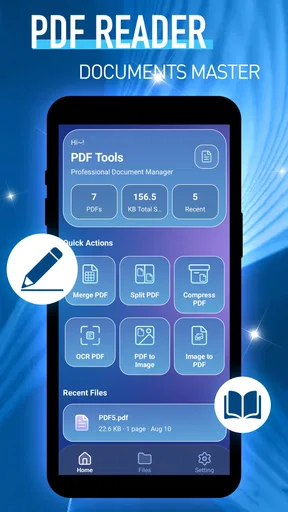
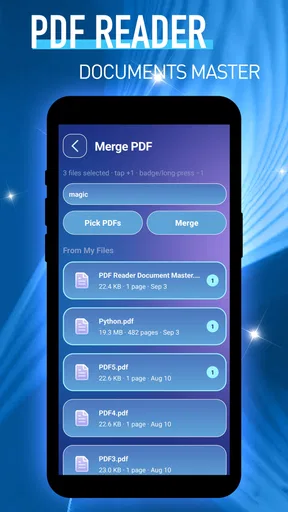
 Analysis by AppCompare
Opening a PDF on a phone should be a small task, not a detour into menus and unfamiliar tools. PDF Reader: Documents Master is aimed at that everyday need: it is a free reading app from Praya, and its focus is clear from the start. I would consider it when I want a straightforward place to open a document, read it on a mobile screen, and get back to what I was doing without treating PDF management as a project.
That narrow focus is both its appeal and the main thing to keep in mind. This is a tools app, not a full office suite or a document-creation workspace. If you are choosing your first PDF reader, the useful question is whether you mainly need to view documents or expect to edit, annotate, sign, and organize them in one place. For the first job, this app is worth a look; for the second, a more feature-rich alternative may fit better.
What to expect from a focused PDF reader
The name can make the app sound like a broad document manager, but I would approach it first as a PDF reader. That expectation helps keep the first session simple: choose a document you already have, open it, and see whether reading it on your device feels comfortable. You do not need to build a new filing system before you can get value from it.
Praya’s app has a 3.6 average rating from around 330 ratings, with more than 100,000 installs. Those figures suggest that it has found an audience, while also making it sensible to try your own usual documents before relying on it for every PDF you handle. It is free, rated for Everyone, and currently at version 1.0.1. The minimum operating-system requirement is 10, so checking that your device meets it is a practical first step.
I would not treat a reader’s simple purpose as a promise that every document will behave identically. A short text handout, a long report, and a scanned page can place very different demands on a mobile reader. The best early test is not a random file: it is one document that represents what you actually expect to use, such as a class reading, an instruction sheet, or a bill.
That test also gives you a fair basis for comparison. The PDF viewer built into a browser or file app may already be enough for occasional reading. A dedicated reader is more appealing if you regularly return to PDFs and want the act of opening one to feel like a deliberate, repeatable task. If your routine involves substantial editing or collaboration, a productivity suite is the more natural comparison than another basic viewer.
Start with one familiar document
After installing it, I would begin with a PDF already saved on the device rather than searching for an unfamiliar sample. Open the app and look for the route to a document, then select a file you recognize. This keeps the first attempt low-risk: you will know whether the right file opened, and you can judge readability without also trying to understand new content.
Worth Reading Before You Choose

EA SPORTS FC Mobile 26 Is a Bigger Football Game, but It Takes Time

Flipboard Shows What News Apps Must Do Beyond the Feed

Switching to Android Auto Means Rethinking Your Driving Routine

Google Calendar Makes a Crowded Week Easier to Manage

Ludo King Makes the Most of the Minutes Between Plans

Baby Panda World Brings Quick Play to Modern Phones, but Its Game Library Feels Busy
If you have a choice, pick a modest document first: a few pages of ordinary text is a better opening test than a large illustrated catalogue or a form you need to submit immediately. This is not a claim that the app cannot handle complex files. It is a way to separate basic access from tougher cases, so that a confusing file does not make you think the whole setup has failed.
When your first PDF is not visible where you expect, pause before downloading it again. Check where the file was saved and whether you are browsing the same location in the reader. On a phone, documents can arrive through messages, email, browsers, or cloud storage, and the file may not be in the folder you happened to check first. This simple check solves a common first-session puzzle without assuming the reader has lost anything.
Make the first reading useful
Your first meaningful success is not just seeing a page appear; it is finding the part you opened the file for. For a timetable, that might be confirming the day and location. For a set of instructions, it might be checking one step while carrying out a task. Once the document is open, use the reading controls that are visible to move through it and orient yourself before deciding whether this app suits longer sessions.
A practical test is to read a page, move to another page, and then return to the point you needed. That reveals more than a quick launch does: it shows whether the basic navigation makes sense to you and whether the content remains legible at the size you prefer. If the page is too dense, try changing how you hold the phone or adjusting the view with controls the app presents. I would avoid assuming a particular gesture or feature until you can see it on your own screen.
For a document you will need only once, a good reader should help you finish the task and close the file without demanding a new workflow. For something you revisit, make a note of how you reopen it. A useful, often overlooked habit is to keep frequently used PDFs in a location you can find again, instead of relying on memory about which message or download contained them. That organization happens outside the reading itself, but it can make any reader feel much easier to use.
Where first-time users can get stuck
The most common source of confusion is mixing up opening a PDF with managing every copy of it. A file may be visible in one app but not stored in the place you expected, and opening it does not necessarily tell you where it came from. If you need to keep a clean record, identify the original location before making decisions about moving or deleting files. That is especially useful for receipts, forms, and documents you might need to retrieve later.
Another easy mistake is judging the app from a single awkward PDF. Scanned pages, complex layouts, and documents with many graphics can be harder to read on a small screen than plain text. If one file looks wrong or feels cumbersome, try a second PDF you know is ordinary. If both are difficult to use, that is a stronger reason to choose a different reader; if only the unusual file causes trouble, the document itself may be the limiting factor.
It is also worth separating reading needs from editing needs before committing to a workflow. If you only need to inspect a document, a focused reader may be enough. If you must fill in fields, add notes, sign, or change the document, check that those actions are available in the app you choose rather than assuming that “document” in the name means a complete editing toolkit. When those tasks are central, I would compare dedicated PDF editors instead.
The same distinction matters for organization. Someone who keeps a small number of PDFs may be comfortable opening each one as needed. Someone handling many work files may care more about sorting, searching, naming, and moving documents than about the reading screen. In that case, a file manager or broader document app can be the better starting point, with a reader used only for viewing.
Choose the right everyday workflow
Here is a realistic use: you receive a PDF of travel instructions in a message while heading out. I would open the attachment, locate the departure detail, and confirm the relevant page before leaving. Later, if the same document matters again, I would make sure I know where it was saved rather than trusting that it will remain easy to find in the message thread. The reader helps with the immediate check; careful file habits help with the repeat visit.
For a student, the same approach works with a course handout: open the file before class, check that the pages you need are present, and use the reader for consultation rather than trying to turn it into a note-taking system. For someone at home, an appliance manual or a downloaded form makes a good trial document. These are situations where quick access and clear page navigation matter more than advanced editing.
A useful next step is to test a longer PDF only after the short one feels comfortable. Try moving between pages you care about and see whether you can return to your place without friction. This is a more meaningful test than installing several readers at once, because it answers the question that affects your daily use: can you handle the sort of document you actually open, on the screen you actually read?
If you rely on PDFs for work, compare the app against your complete routine, not just the moment of opening. You may need to share files, annotate, search text, or keep several documents organized. I would not choose a focused reader as the sole tool for those needs unless it clearly supports the actions you depend on. A full office or PDF-editing app may involve more menus, but that extra complexity can be worthwhile when it replaces several separate steps.
Who should try it, and who should look elsewhere
I would recommend giving PDF Reader: Documents Master a try if you are new to PDF apps, want a free option, and mainly need to open and read documents. Its uncomplicated purpose makes it a reasonable first stop, particularly if your current method involves repeatedly hunting through downloads or opening files in whatever app happens to appear. Start with one familiar PDF and decide based on that real task rather than the name alone.
I would look elsewhere if your first requirement is editing, signing, filling forms, intensive annotation, or managing a large professional library. Those needs call for capabilities beyond the basic reading job, and choosing an app around the one action you care about most saves frustration. Likewise, if your phone is on an operating system below version 10, this is not the right install to pursue on that device.
There is also a useful middle ground: keep this app for uncomplicated reading while using a separate tool when a document needs a specialized action. That can be less cluttered than forcing a single app to handle every stage. The trade-off is that you may switch apps, so it makes sense only if reading is frequent and editing is occasional.
A sensible first-week verdict
My advice is to judge the app by a small, repeatable routine: open a familiar PDF, find a needed passage, leave the document, and see whether you can return to it later. If that path feels natural, it can earn a place as your everyday reader. If you keep wishing for editing or stronger document organization, that is not a failure on your part; it is a sign that your needs belong to a broader tool.
Overall, this is a modest, approachable option for people whose main goal is reading PDFs rather than transforming them. The free price lowers the barrier to trying it, while its current 1.0.1 version and mixed average rating make a hands-on test more useful than relying on assumptions. I would start with a low-stakes document, learn where your files live, and keep the app only if it makes that first simple task easier. That is the clearest way to find out whether it fits your phone and your habits.
Pros
- Opens common PDF files quickly and reliably.
- Text search makes it easier to find specific passages.
- Page thumbnails help you navigate long documents.
- Useful for reading files stored on your device.
- A straightforward interface is easy to learn.
Cons
- Advanced editing tools may be limited.
- Large PDFs can take longer to load on older devices.
- Some features may require an internet connection.
- Ads may interrupt the reading experience.
- File-management options may feel basic for heavy users.
FAQs for PDF Reader: Documents Master
What is PDF Reader: Documents Master used for?
PDF Reader: Documents Master is designed to help you open and read PDF files on a mobile device. Depending on the version and available features, it may also provide tools for navigating pages, searching document text, managing files, or adjusting how a PDF appears on screen. Check the app listing and in-app menus to confirm which tools are included in the version available for your device.
Can I use PDF Reader: Documents Master without an internet connection?
PDF files already saved on your device can generally be read offline, provided the app has access to them and does not require an online service for a particular feature. Internet access may still be needed to download documents, use cloud storage, view advertisements, or access optional online tools. Before traveling or going offline, open the files you need and verify that they are available locally.
Does PDF Reader: Documents Master let me edit or annotate PDFs?
PDF reader apps can differ considerably in their editing and markup options. Some offer highlights, notes, signatures, or drawing tools, while others are primarily intended for viewing and organizing documents. Confirm the features shown in the current app description and test them with a copy of a document before relying on them. Advanced editing, exporting, or other tools may be limited or require a purchase.
Is PDF Reader: Documents Master safe for private or sensitive documents?
A PDF reader may need permission to find or open files on your device, but that alone does not explain how document contents or usage data are handled. Review the app’s privacy policy, store-listed data disclosures, and permission requests before importing sensitive material. Be particularly cautious with confidential, financial, or identity documents, and avoid sharing or uploading them unless you understand where they will be stored.
Is PDF Reader: Documents Master free, and what should I check before downloading?
The app may be available to download without an upfront charge, but its pricing model can include advertisements, in-app purchases, or subscription features. Check the Google Play or Apple App Store listing for supported devices, recent updates, user feedback, and any recurring costs. Also make sure you have sufficient storage and understand the requested permissions before installing or subscribing.


